Print or scan at multiple locations on campus using a secure portal or at the multifunction printers located in the EMF Information Commons, computer labs and Rosaria Crows’ Nest.

In order to print you must first prepay for “print credits” using PaperCut.
Note: print credits can also be purchased at the Library Circulation Desk.
Login to PaperCut using either your MSVU username or email address.
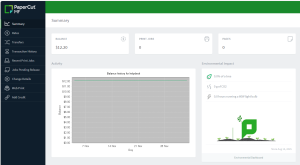
Right Side Menu Items:
Summary – shows your print balance and details of previous print jobs.
Rates – shows the print cost for grayscale and color prints.
Transfers – you have the option to transfer print credits from your account to a friend’s account. You will need to enter your friend’s username and choose an amount, click transfer. You should see your available credit reduced by the amount you transferred and a notification letting you know it was successful.
Transaction history – show when you have added credit, printed, or transferred credits to another user.
Recent print jobs – show your recent printing history including the name of the document printed and to what printer it was sent to.
Jobs pending release – this is typically used for secure printing (option coming soon).
Change details – allows you to set a pin code for secure printing (option coming soon).
Web print – an option to print via the web interface, typically utilized by personal devices. At this time, you can only print PDFs and images such as gif, tiff, jpg, etc.
Add credit – a self-serve option to add print credits to your account with a credit card such as Visa or Mastercard. The web payment is powered by Moneris, the papercut system does not store any card information. Choose an amount that you would like to add to your account and click the ‘Add Value’ button. You will be directed to a secure payment gateway powered by Moneris (PaperCut does not store any card details). Click ‘Pay Now’ and the amount will be added to your account. Click ‘Done’ to return to PaperCut.
Logout is in the top right corner, click on your username and select logout.
*colour printers are located in EMF Information Commons, Seton 413 Education CRC, Rosaria Crows’ Nest and indicate colour in the printer description.
IT&S advises you to do a print preview before sending a print job to be printed to ensure you are printing what you intended. You are responsible to pay for all pages printed from your account.
Credit refunds will be deposited on your account if it is clear the paper is damaged or the print is not satisfactory (faded or blurred).
IT&S does not provide cash refunds. At the end of an academic term, the IT&S Help Desk will provide refunds if you have cash remaining on your account.
When you login to a computer located in any MSVU computer lab, including those in the EMF Learning Commons, you will notice the PaperCut popup which shows your current balance.
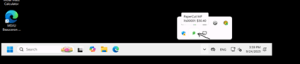
If you close the popup, it wil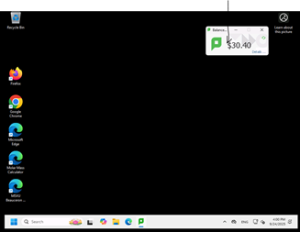 l run in the background and can be accessed by clicking on it from the task bar.
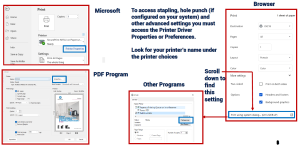
Printing steps will differ depending on the device and application you are printing from. The printer dialogue box, with the white checkmark in the green circle, is the default printer for the location that you are printing from.
Note: Most printers have just one print queue, there is no second queue specifically for color printing. The exception are the printers in the EMF Info Commons where there are two separate queues, grayscale and color, directed to different printers.
The default setting is grayscale, to print in color use the pull down and select auto color on the printer properties dialogue box.
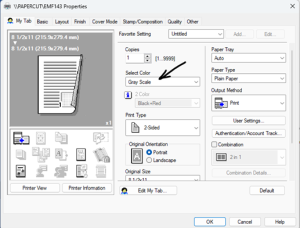
Subsequent prints will print in the method selected. It is recommended to only print in color the pages you need to be printed in color, then change back to grayscale since the cost of color is higher than grayscale.
Note: If the printer does not support color printing, such as the default printer for SAC329 and SAC331 labs, no color option will be present.
Other Print Driver Setting Options:
Original Orientation – Of Originals (in file)
Original Size – Size of originals in file
Copies – Quantity
Print Type – 2 Sided, 1 Sided or Booklet
You may print PDF or picture files (gif, jpeg, tiff, bmp, etc) from your personal device by using a web browser. Currently you may print from your personal device to the following printers on campus:
EMF Information Commons: Infocommons1 and Infocommons2
Seton 331 Computer Lab
Rosaria 203 Crows’ Nest
How to print from your own device using EveryOne Print >>
You can scan to email for free from the printers in the Library Information Commons Printing Hub.
To scan to email: